Your personal AI assistant. For what needs doing today.
A thought, a message, an appointment: VI Assist helps turn them into manageable next steps. Talk or write to your virtual assistant and keep track of tasks, lists and reminders.
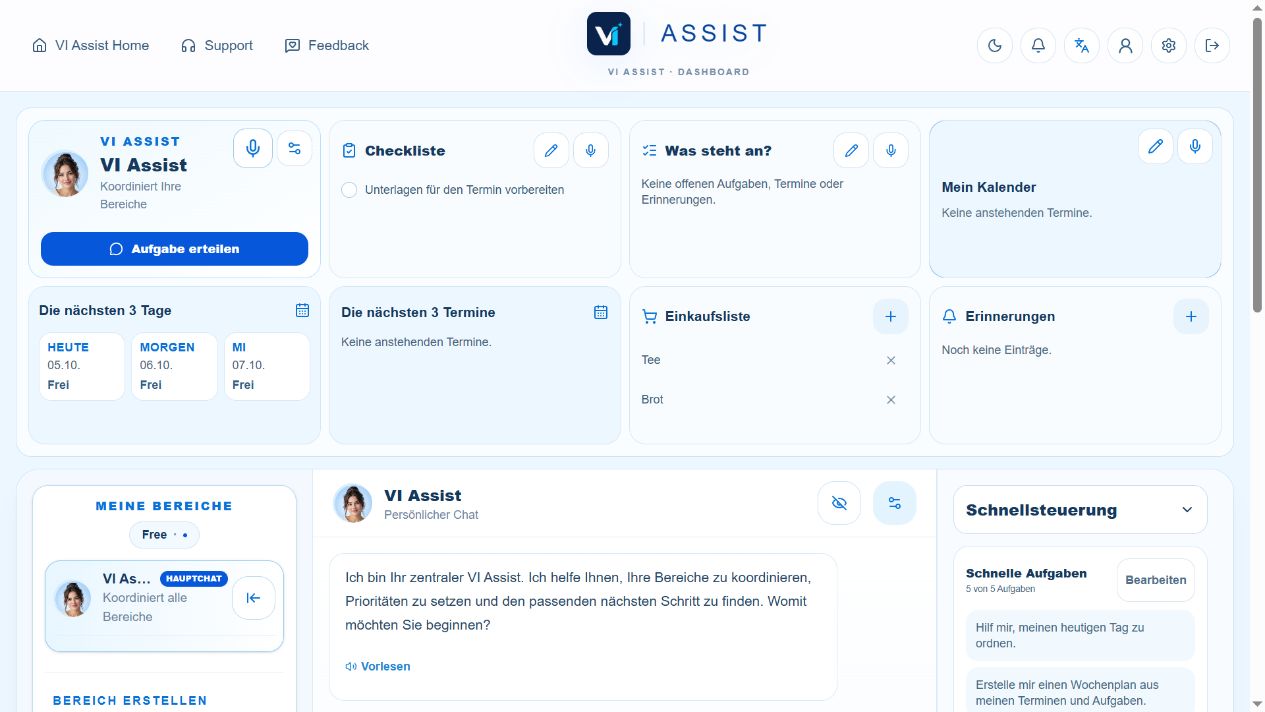
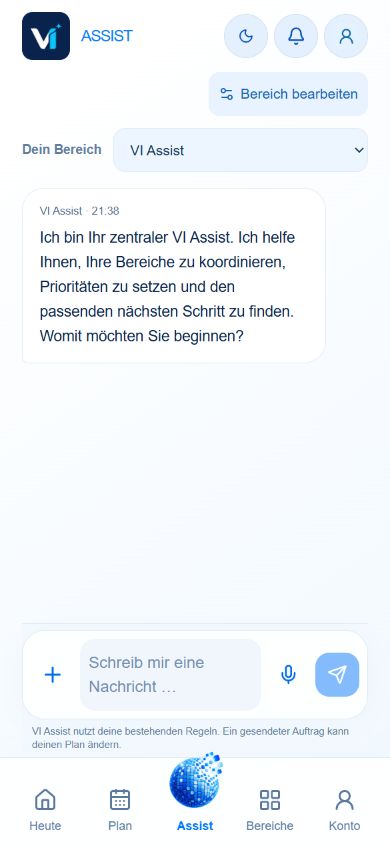
Your everyday life. On your screen.Browser dashboard & mobile chat view
The devices show German-language sample screens with fictional data. Real VI Assist screens with fictional sample data: a browser dashboard and mobile chat view. Devices shown as illustrative frames.
From a thought to a clear list
Say what needs doing. Use it in everyday life.
Your next shopping trip and tomorrow's documents: two small requests you no longer need to keep in your head. Walk through the example step by step.
„Add bread and tea to my shopping list. Add “Prepare documents for the appointment” to my checklist.“
Vi
VI Assist
Bread and tea go on the shopping list. The documents appear as a separate item on your checklist.
Your own lists · no provider permission needed
VI Assist · Anwendungsbeispiel
Your words are enough to get started.
Write the task in the chat or use dictation if your device has permission for it. Be specific about what goes on which list. If something is missing, the assistant can ask.
Illustrative process with fictional entries. Your own checklists and shopping lists don't require an external account connection. This preview does not change any data.
Just say what needs doing
Small requests. Clear results.
You don't need to learn commands. Start with a clear task and review the next step.
Make your day manageable
Organize tasks and appointments in your dashboard. The assistant helps prioritize; you check what was actually saved.
You could ask it like this„Help me organize my tasks for tomorrow. Ask if a time is missing.“
Open the Permissions Center and choose Outlook email or Outlook Calendar. Check the Microsoft account shown and the permissions requested.
Your permissionsReading · AI analysis · actions
02
Set the scope
Start by viewing selected messages or supported appointments. Authorize AI analysis separately. A connected account does not authorize every action.
Your decisionReview draft → confirm sending
03
Review the result
Check your email draft before confirming that it should be sent. For calendar changes, choose permissions, destination calendar and sync mode carefully. You can revoke permissions.
Calendar · example
Prepare documentsChoose the date, time and duration yourself
Your VI AssistSelected Outlook calendar
Writing requires permissions and a selected mode
Appointments follow a clear process too
One appointment. One chosen calendar. A clear overview.
Set aside time for your documents and specify the date, time and duration. Check whether the appointment should appear only in VI Assist or also in the selected Outlook calendar.
Connecting a calendar does not automatically grant write access. Changes at the provider require additional permissions and an enabled mode.
Google: Sign-in and registration are available. Gmail and Google Calendar remain limited to approved test accounts in the demo/pilot programme.
Calendar sync: Supported appointments in the primary calendar cover seven days in the past to 90 days ahead. Updates run approximately every five minutes; recurring events are read-only, and all-day events remain with the provider.
Use VI Assist in the browser on your computer, tablet or smartphone. With the same account, you'll find your saved entries again. An internet connection is required.
The Windows companion is available to download. The Android app is being trialled as a test app; a native iPhone app and public app store releases will follow.
For the Android test app, currently set up new provider permissions in the browser first, using the same VI Assist account.
Your everyday life. On your screen.Browser dashboard & mobile chat view
Dashboard and mobile chat from an isolated Free sample account, with no customer data. Outlook connections require Smart, Pro or Individual.
Use the same account, find your saved entries and continue wherever it suits you.
Your assistant. Your decisions.
Get help preparing. Check what matters yourself.
Set the tone, rules and areas to suit your everyday life. A request does not extend provider permissions. Your review and the specific permissions remain essential for important results.
VI Assist is AI software for your personal organization. You make requests in natural language, organize tasks and prepare text. This does not book a human assistance service.
What can I use for free?
With Free, you start without payment details with your personal main chat and one area of your life. Each plan's limits are listed on the pricing page. Outlook email and Outlook Calendar connections require Smart, Pro or Individual.
Does a Microsoft login already authorize Outlook access?
No. Signing in creates or opens your VI Assist account. An email account or calendar is connected only after you grant separate provider permission. You also decide separately on AI analysis, sending emails and calendar changes.
Can I connect Gmail or Google Calendar?
Google sign-in and registration are available. Until the provider review is complete, Gmail and Google Calendar remain limited to approved test accounts in the demo/pilot programme. Smart alone does not currently unlock these Google connections.
How reliable are replies and reminders?
AI responses can contain errors. Check important details and saved entries. Reminder notifications also depend on your internet connection, device permissions and operating system. For critical deadlines, use an additional reliable backup of your own.
A small first step is enough
Try a task from your everyday life.
Start for free. Smart, Pro and Individual support Outlook connections. Compare features, limits and prices before subscribing.